When you need to remove a watermark from an AI-generated image, your biggest concern is usually what happens to the rest of the picture. Will the colors shift? Will the sharp edges become blurry? Will compression artifacts ruin the details?
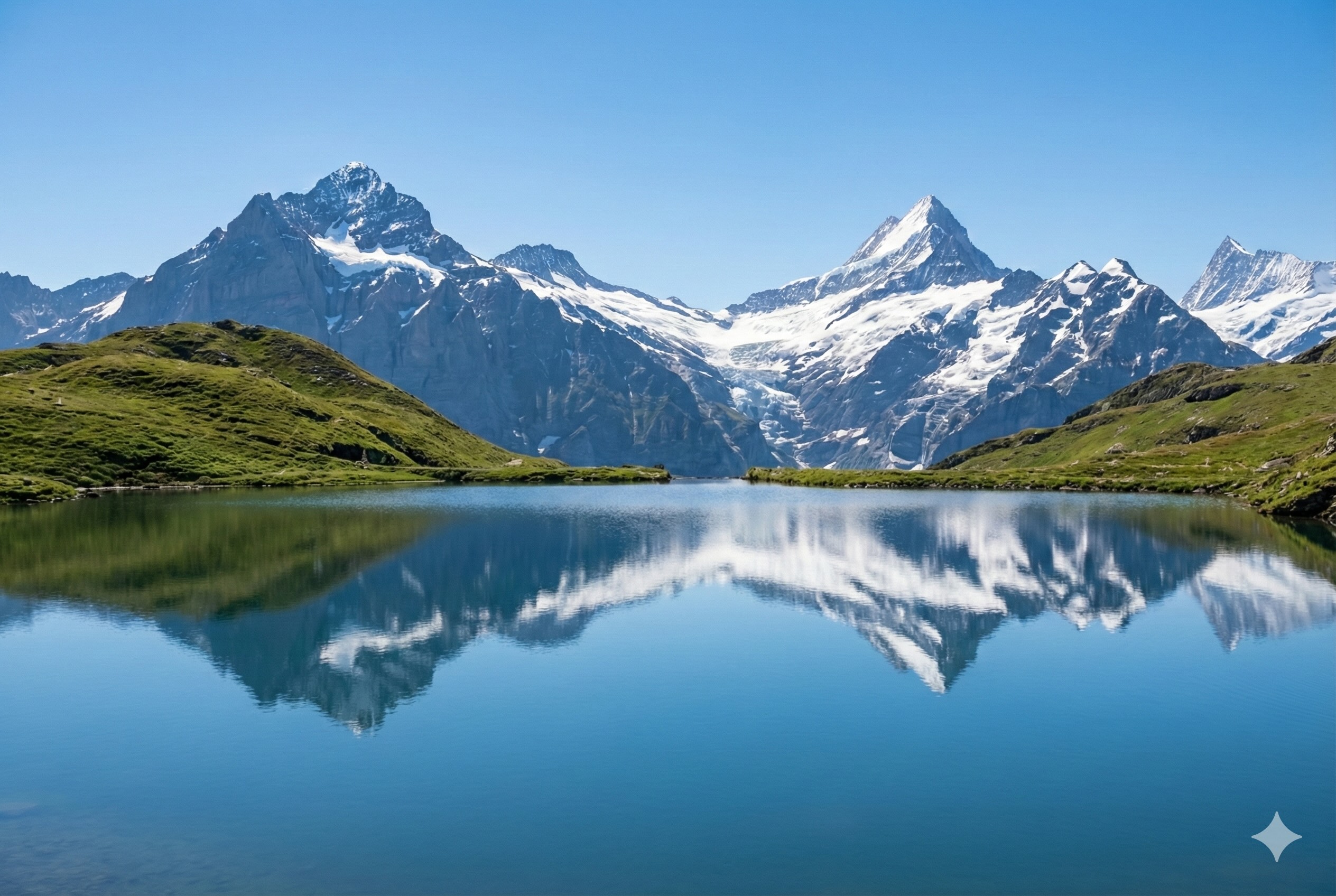
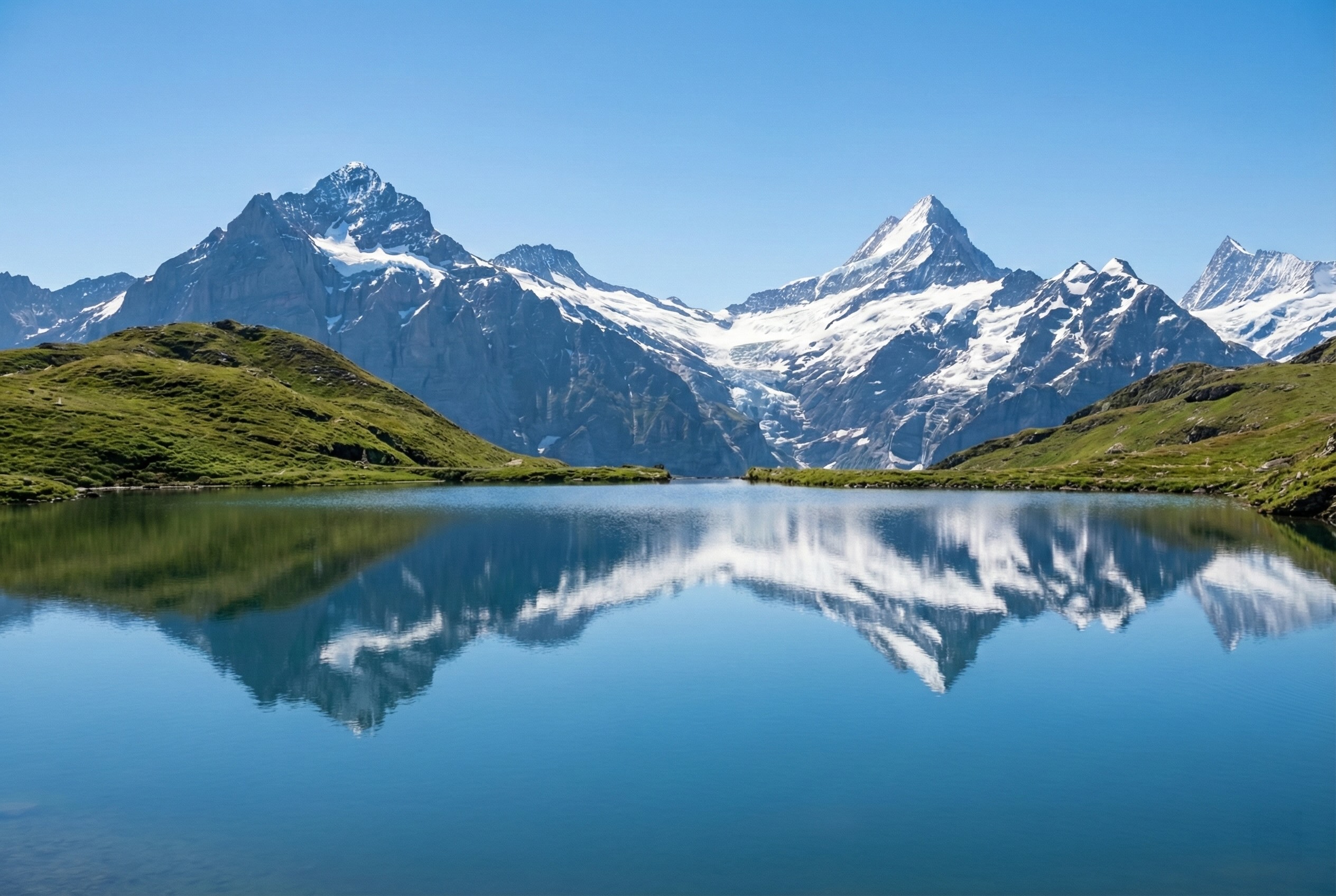
Preserving image quality during watermark removal is crucial, especially if you are preparing assets for professional presentations, print, or high-resolution displays. Here is a comprehensive guide to understanding how image degradation happens and the best techniques to ensure your cleaned images look exactly as crisp as the originals.
Understanding Why Images Lose Quality
To preserve quality, you first need to understand how it gets lost in the first place. When editing digital images, quality degradation typically occurs in three ways:
1. Destructive Editing
If a watermark removal tool uses a simple "blur" or "smudge" effect to hide a watermark, it destroys the underlying pixel structure. Instead of a clean image, you are left with a noticeable, distracting smudge that looks unprofessional.
2. Re-compression Artifacts
Every time you save a JPEG file, the image is compressed. If you open a JPEG, edit it, and save it again as a JPEG, you apply a second layer of compression. This "generation loss" creates blocky artifacts around edges and degrades fine details. Doing this repeatedly will noticeably ruin the image.
3. Resolution Downscaling
Some free online tools secretly downscale your images to save on server processing costs. You might upload a crisp 4K image and receive a slightly blurry 1080p file in return. The watermark might be gone, but so is half of your image data.
The Gemini Watermark: A Best-Case Scenario
When it comes to watermark removal, not all watermarks are created equal. Stock photo platforms often use aggressive, semi-transparent patterns tiled across the entire center of the image. Removing these without destroying the underlying picture is incredibly difficult and often requires advanced generative fill AI.
Google's Gemini watermark, however, is a localized overlay. It is consistently placed in the bottom-right corner, covering only a tiny fraction of the total image area. This makes it a best-case scenario for quality preservation. Because 98% of the image is completely untouched by the watermark, a well-designed removal tool only needs to process that specific corner.
Technique 1: Localized Processing
The most important rule for preserving quality is to only edit the pixels that need editing. If you are using a photo editor like Photoshop or GIMP, do not apply global filters or adjustments while trying to hide the watermark.
Our browser-based Gemini Watermark Remover is built on this principle. It mathematically isolates the specific pixel coordinates where the Gemini sparkle icon and text are located. It leaves the rest of the image array completely untouched. When you download the result, the vast majority of the file is a bit-for-bit identical match to your original upload.
Technique 2: Avoiding Server-Side Compression
If you use a cloud-based image editor, your file is uploaded to a server, decompressed, edited, re-compressed, and downloaded back to you. You have no control over the compression algorithm or the quality settings the server uses.
To maintain maximum quality, process your images locally. By using client-side JavaScript tools (like our watermark remover) or native desktop applications, the processing happens on your own machine's memory. The file is read, the specific watermark region is corrected, and the file is written back to your disk using high-quality encoding standards. There is no middleman applying aggressive compression to save bandwidth.
Technique 3: Managing File Formats
The format you use plays a massive role in quality preservation. Gemini typically outputs images in JPEG or WebP formats, both of which are "lossy" formats (meaning they discard some data to keep file sizes small).
- If your source is a PNG: You are in luck. PNG is a lossless format. You can edit a PNG and save it as a PNG a thousand times without any generation loss. Always choose PNG output if your removal tool offers it.
- If your source is a JPEG/WebP: Try to minimize the number of times you save the file. Perform your watermark removal as the very last step in your workflow, immediately before you use the image for its final purpose.
Technique 4: The Cropping Alternative
If the visual integrity of the image is absolutely critical and you cannot tolerate even the slightest localized pixel reconstruction, you have one foolproof alternative: cropping.
Because the Gemini watermark sits tightly in the corner, you can simply crop the bottom 5% of the image. This guarantees that 100% of the remaining pixels are exactly as the AI generated them, with zero processing or reconstruction applied. While you lose a small slice of the composition, you guarantee absolute pixel fidelity.
Technique 5: Always Keep a Non-Destructive Original
The single most reliable way to protect image quality is to make sure you can never permanently lose it. Before you touch a file, keep an untouched copy of the original download in a separate folder. Every edit you make should then be performed on a duplicate, so the pristine source is always just one click away if a process goes wrong or you change your mind later.
This "non-destructive" mindset matters most with lossy formats. If you remove a watermark, save a JPEG, later decide to re-crop, and save it again, you have stacked two rounds of compression onto a file you can no longer undo. But if you always return to the original for each new round of edits, you only ever apply a single generation of compression to the final export—no matter how many times you revise your approach along the way.
If your editor supports it, take this one step further and work inside a layered project file, such as a PSD or your tool's native format, exporting a flattened JPEG or PNG only as the very last step. The layered file preserves your full-quality source and your individual edits separately, giving you effectively unlimited room to experiment without degrading a single pixel of the underlying image.
Summary: The Quality Checklist
Before you process your AI-generated images, run through this quick checklist to ensure you are preserving the best possible quality:
- Does the tool target only the watermark region, or does it re-process the whole image?
- Does the tool process locally, or does it upload to a server that might apply hidden compression?
- Does the tool output at the exact same resolution as your original file?
- Are you saving in a high-quality format (like PNG) or minimizing your JPEG saves?
By following these principles and using precision tools, you can ensure your AI artwork remains vibrant, sharp, and perfectly clean.